Google Docs dark mode is built into the Docs, Sheets and Slides apps for Android, iPhone and iPad, but not into Docs on a computer. On a PC or Mac, most of the usual fixes darken the menus around your document and leave the page itself white. When each option was tested on the same document on September 27, 2026, only one extension, Dark Reader, turned the page dark.
Below is every method, what it actually changes, and the catch that comes with each, with screenshots from the tests.
Google Docs dark mode options at a glance
Method | Works on | Menus | The page | The catch |
|---|---|---|---|---|
Built-in dark theme | Docs, Sheets and Slides apps on Android, iPhone, iPad | Dark | Dark | Phones and tablets only |
Dark Reader extension | Chrome, Edge, Firefox, Safari | Dark | Dark | Can read every site you visit unless you limit it |
Chrome's Auto Dark Mode flag | Chrome and other Chromium browsers | Dark | White | An experiment, and it darkens every website |
"Google Docs Dark Mode" extension | Chrome | Partly | White | Last updated in August 2023 |
Invert colors in Windows or macOS | Your whole screen | Inverted | Dark | Colors invert too, and photos unless you use Mac's Smart option |
Your system's dark mode | Windows, macOS | Unchanged | White | Docs ignores it |
Page color setting | The document itself | Unchanged | Any color | Changes the file for everyone |
Does Google Docs have a dark mode?
On phones and tablets, yes. On computers, no. Google's own help page for the feature has instructions for Android and for iPhone and iPad, and describes it as a setting for "your mobile device". Ask the page for its computer version and you get the Android one, because there is no computer setting to describe:
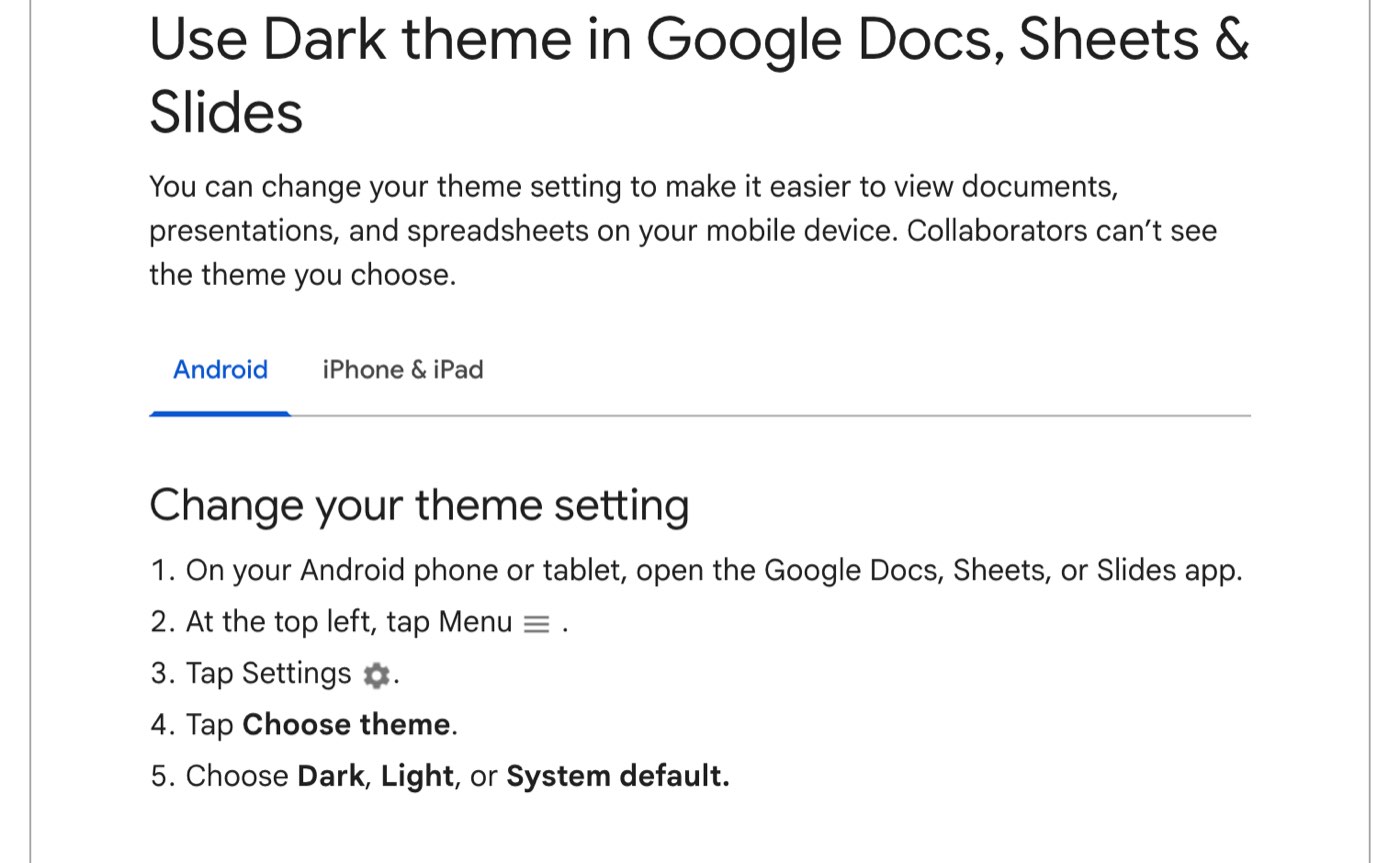
Google's help page for dark theme on September 27, 2026. It has an Android tab and an iPhone and iPad tab, and no tab for computers.
The same page answers a common worry: "Collaborators can't see the theme you choose." Dark theme changes how the document looks to you, not the file.
How to turn on dark mode in the Google Docs app
On Android, from Google's help page:
Open the Google Docs, Sheets or Slides app.
Tap Menu (three lines) at the top left.
Tap Settings, then Choose theme.
Choose Dark, Light or System default.
On an iPhone or iPad the path is almost the same, but the setting is called Theme: Menu, then Settings, then Theme. System default follows your phone, so Docs goes dark whenever the phone does.
In dark theme, the app adjusts your document's colors to fit. To check how a document will look to everyone else, open it, tap More at the top right and tap View in light theme.
How to make Google Docs dark mode on a computer
With no setting in Docs itself, the choice is between a browser extension, a Chrome experiment and your operating system. They behave very differently, because of how Docs draws a document. Since 2021, Docs has drawn the page on a canvas, a single image the browser paints, rather than as ordinary web text. Google warned at the time that the change "may impact some Chrome extensions". In the test document, the browser found three canvas elements and none of the document's text in the page's HTML. So tools that recolor a page's HTML, like Chrome's own dark mode, can darken the menus around the document but not the document.
Dark Reader: the one that darkens the page
Dark Reader is a dark mode for every website, with 7 million users on the Chrome Web Store, a 4.7-star rating and an update on September 24, 2026. It is open source under the MIT license and also available for Edge, Firefox and Safari. It was the only desktop option in the tests that turned the page itself dark. It gets through because its built-in rules for docs.google.com invert the colors of the canvas the page is drawn on:
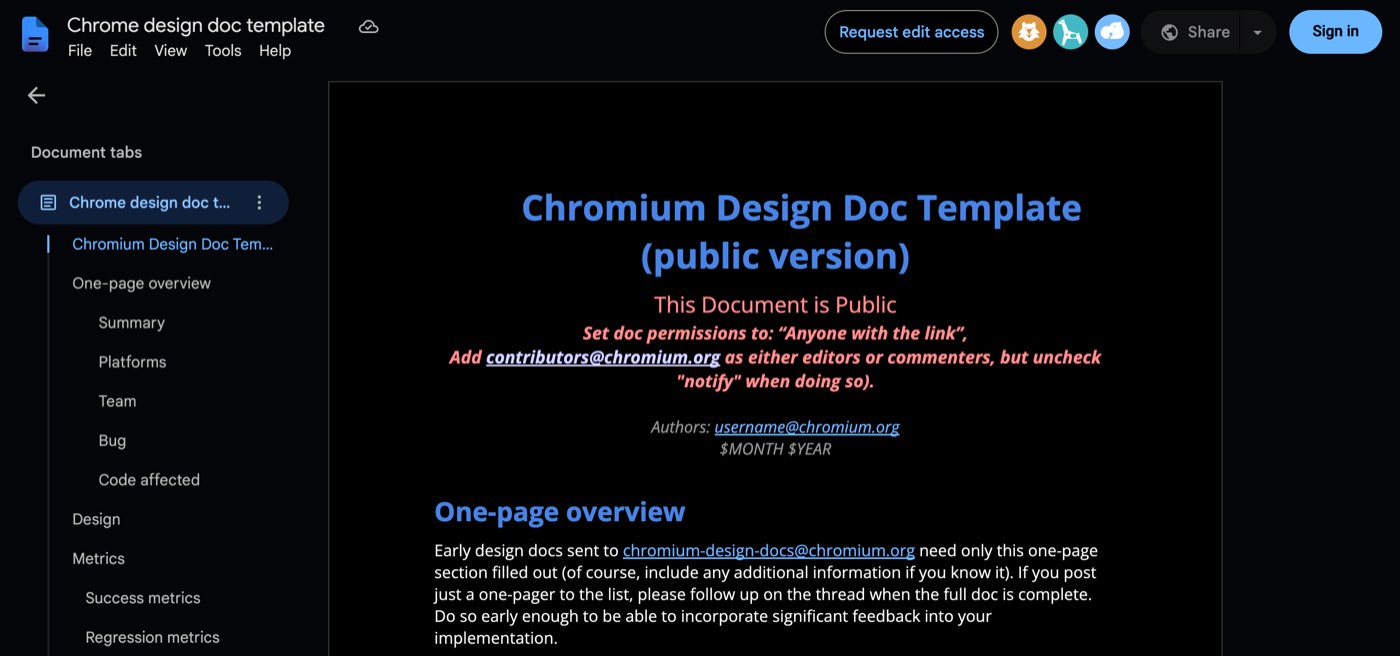
A public Google Doc with Dark Reader 4.9.133 on, September 27, 2026. The page is dark, and the red text has turned pink.
Two things to know before you install it:
It changes colors, not just backgrounds. Inverting the page shifts everything on it: in the test, red text came out pink. What you see is no longer exactly what your collaborators see or what prints.
It can read every page you open. A dark mode for all websites needs access to all websites, and Dark Reader's Chrome build asks for exactly that. If you only want it for Docs, open Manage extensions, click Details on Dark Reader, and change its site access to On specific sites. Then add docs.google.com.
Chrome's Auto Dark Mode flag: dark menus, white page
Chrome has an experimental setting that renders every website in a dark theme. To turn it on, type chrome://flags/#enable-force-dark in the address bar, set Auto Dark Mode for Web Contents to Enabled, and click Relaunch.

The flag as it appears in Chromium 151, the open-source browser Chrome is built on, on September 27, 2026.
It works on the parts of Docs that are ordinary web page: the toolbar, the sidebar and the background. The page, drawn on its canvas, stays white:
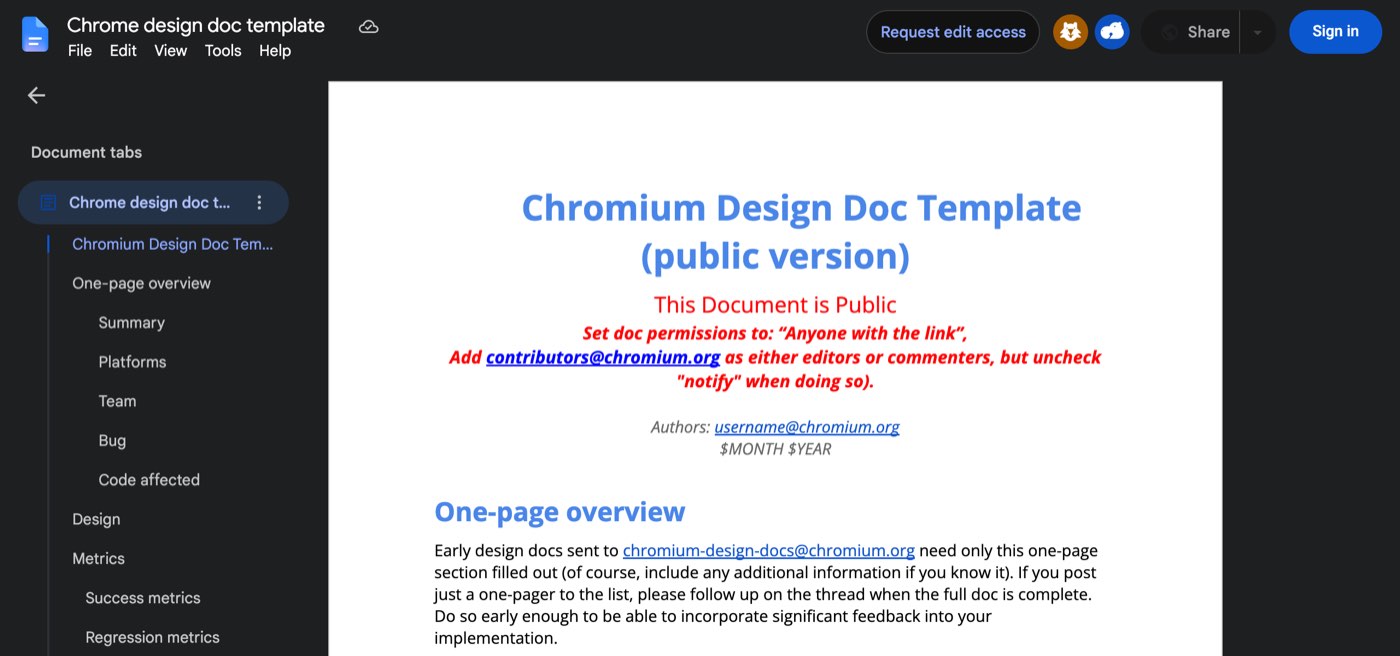
The same document with the Auto Dark Mode flag on, September 27, 2026. The interface is dark and the page is still white.
That can still help: it cuts the glare from everything around the page. But the flag applies to every site you visit, and it's an experiment, so Chrome can change or remove it with any update.
The "Google Docs Dark Mode" extension: out of date
The top search result for Google Docs dark mode is an extension called Google Docs Dark Mode. It has 900,000 users and a 3.4-star rating, and its listing shows its last update on August 28, 2023. Its permissions are narrow, which is good: it runs only on Google Docs pages. But in the test it only half worked:
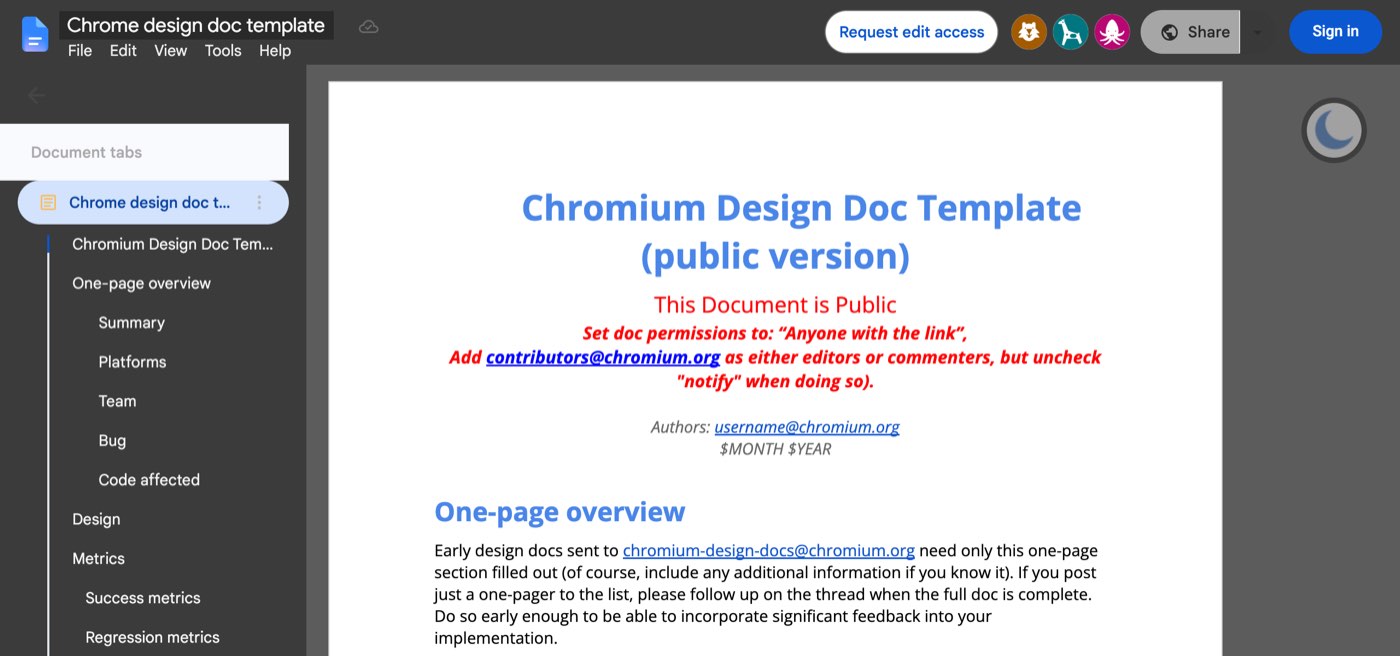
Google Docs Dark Mode 1.5.1 on the same document, September 27, 2026. The menus turn grey, the document tabs panel stays white, and so does the page.
The white panel is Docs' document tabs sidebar, a feature added after the extension's last update. The extension also has a button for the page color. Pressing it changed the button's icon, but the page stayed white either way.
Invert your screen's colors (no extension needed)
If you'd rather not install anything, both Windows and macOS can invert the colors of the whole screen, which turns a white page black:
Windows 11: open Settings, then Accessibility, then Color filters. Turn on Color filters and choose Inverted.
Mac: open System Settings, then Accessibility, then Display, and turn on Invert colors. The Smart option leaves images and video alone.
The catch is that everything flips, including photos and the colors in your document, and you have to switch it off again when you leave Docs.
Your system's dark mode won't do it
Turning on dark mode in Windows or macOS changes nothing in Docs. In the test, with the browser set to a dark system theme, the document looked exactly as it does in light mode. Docs doesn't follow the system setting that many websites do.
Changing the page color changes the file
Docs does let you set a page color: click File, then Page setup, and pick a Page color (in a pageless document, it's the background color). With a dark page and light text, you have a dark document. But this edits the document itself, so every collaborator sees your colors too. Use it only on your own drafts, and set it back to white before you share or print.
Dark mode in Google Sheets, Slides and Drive
Sheets and Slides work the same way as Docs. The phone apps share the Docs theme setting described above, and on a computer neither has a dark theme of its own, so the browser options are all there is.
Google Drive is the exception. On the web it has had a real dark theme since 2024. In Drive, click Settings at the top right, and under Appearance choose Light, Dark or Device default. This darkens Drive's file list, but a document you open from it still opens in Docs, with a white page.
How do you turn off dark mode in Google Docs?
On a phone or tablet, go back to Settings, then Choose theme (Theme on iPhone and iPad), and pick Light. To check a single document without switching, use More, then View in light theme.
On a computer, Docs has no dark mode to switch off, so a dark Docs is coming from somewhere else. Check these in order:
An extension. Click the extensions icon in your browser's toolbar and turn off any dark mode extension, or remove its access to docs.google.com.
Chrome's flag. Open
chrome://flags/#enable-force-dark, set it back to Default and relaunch.Your screen settings. Turn off Color filters in Windows, or Invert colors on a Mac.
The document itself. If only one document is dark, someone changed its page color. Open File, then Page setup, and set the page color back to white.
Frequently asked questions
Is there a Google Docs dark mode on PC?
Not a built-in one. Google's dark theme covers the phone and tablet apps only. On a PC, an extension such as Dark Reader is the only option in these tests that darkened the page itself.
Why doesn't Google Docs have a dark mode on computers?
Google hasn't said. What is clear is that Docs draws its pages on a canvas, which is why the browser's own dark modes can't reach the page, and why extensions that used to work stopped when Google changed how Docs draws.
Can other people see my dark mode?
No, as long as you use the app theme, an extension or a screen setting. They only change your view. The one exception is the page color setting, which is saved in the document.
Is Dark Reader safe to use?
It is open source, widely used and actively maintained, and its store listing says it doesn't collect your data. It still has access to every page you visit, so limiting it to docs.google.com is the careful setup if Docs is all you need it for.
Does Google Docs dark mode save battery?
On phones with OLED screens, dark pixels use less power, so the app's dark theme can help a little. On a laptop with an LCD screen, the difference is small.
How these methods were tested
Each option was tested on the same public document, Chrome's design doc template, in Chromium 151 on September 27, 2026. Each setup changed one thing: a dark system theme, the Auto Dark Mode flag, or one extension installed from its Chrome Web Store build. The extensions' manifests were read to check what each can access. The phone app steps come from Google's help pages. This guide is from the Writeouts Tech Desk and follows our editorial standards.
The Writeouts editorial desk for everyday tech: guides and comparisons of AI tools, social media tools and the software people use to get work done. From the Writeouts editorial team.
See everything by @tech-desk
0 comments
Sign in to join the discussion.
Loading comments…