Introduction
Red Hat OpenShift is a Kubernetes-based container platform that helps organizations deploy, manage, and scale applications. It provides capabilities for application deployment, networking, security, monitoring, and cluster administration. Although OpenShift simplifies many operational tasks, applications can still experience problems during deployment or runtime.
Common issues include pods that fail to start, container images that cannot be downloaded, applications that repeatedly restart, and services that are inaccessible. These problems can affect application availability and make troubleshooting an important skill for IT professionals.
Learning how to investigate these issues helps system administrators, DevOps engineers, cloud professionals, and students develop practical knowledge of container environments. This guide explains common OpenShift deployment problems and demonstrates how to investigate them using the OpenShift command-line interface (CLI).
Understanding OpenShift Resources
Before troubleshooting an application, it is important to understand the resources involved in running it.
Project: A logical space used to organize application resources and manage access.
Pod: The smallest deployable unit in Kubernetes, containing one or more containers.
Deployment: Defines the desired state of an application and manages its replicas.
Service: Provides a stable network endpoint for accessing a group of pods.
Route: Exposes an application externally through a configured hostname.
ConfigMap and Secret: Store configuration data and sensitive information used by applications.
These resources work together to make an application available. For example, a deployment manages application pods, a service provides an internal endpoint, and a route can expose the application to external users.
When a problem occurs, examining these resources individually helps identify where the failure may originate.
1. Confirm the Current Project
One of the simplest troubleshooting mistakes is running commands in the wrong project. OpenShift commands often use the currently selected project, so administrators should confirm their context before investigating an application.
Use the following commands:
oc project
oc projects
oc project YOUR_PROJECT_NAME
The first command displays the current project. The second lists projects available to the user, while the third switches to a specified project if the user has the required permissions.
After selecting the correct project, inspect its application resources. This step is particularly important when working with development, testing, and production environments that contain applications with similar names.
Always verify the project before making changes. An otherwise correct command can affect the wrong workload if it is executed in an unintended environment.
2. Check Deployment and Pod Status
When an application becomes unavailable, begin by checking its deployment and pod status.
oc get deployments
oc get pods
The deployment output shows the desired and available replicas. The pod output provides information about individual workloads and their current states.
Common pod states include:
Pending: The pod has not started running. It may be waiting for scheduling, storage, or other requirements.
ImagePullBackOff: The platform is having difficulty retrieving the required container image.
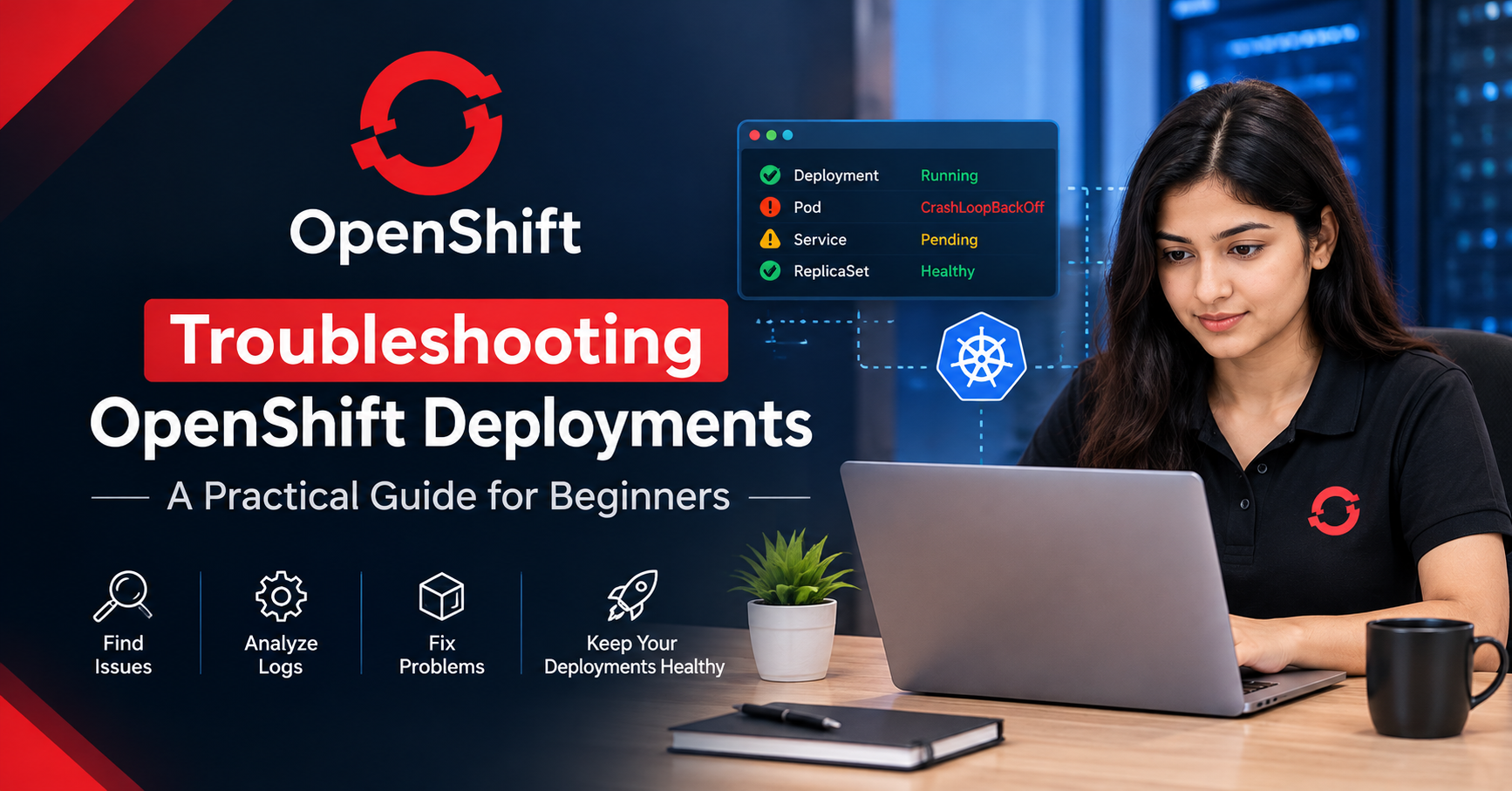
CrashLoopBackOff: A container repeatedly starts and then exits.
Running: The pod is running, although this does not guarantee that the application is functioning correctly.
ErrImagePull: An attempt to retrieve a container image has failed.
For example, an ImagePullBackOff state may indicate an incorrect image name, an unavailable registry, a network issue, or missing permissions for a private image repository.
A CrashLoopBackOff state may be associated with application errors, missing environment variables, invalid configuration, or unavailable dependencies.
The status provides an initial clue rather than a complete diagnosis. Use additional commands to investigate the underlying cause.
3. Inspect Pod Details and Events
When a pod does not start correctly, inspect its details.
oc describe pod POD_NAMEReplace POD_NAME with the actual name of the pod. The output includes information about its configuration, container states, scheduling, and recent events.
Events can reveal problems such as failed image downloads, insufficient resources, unsuccessful health checks, or volume-mount errors.
For example, if a pod cannot be scheduled, check whether the cluster has enough available resources and whether the workload has scheduling constraints. If the container image cannot be downloaded, verify the image reference and registry credentials.
Pay attention to the event messages and their timestamps. The latest event may explain the current failure, while earlier events may show how the issue developed.
Avoid changing several settings at once. Investigate the evidence first, identify a likely cause, and make a controlled change only when you understand its purpose.
4. Review Application Logs
Application logs are essential when a container starts but fails during execution. Use the following command to inspect logs:
oc logs POD_NAMEIf the pod contains multiple containers, specify the relevant container:
oc logs POD_NAME -c CONTAINER_NAMEWhen a container has restarted, the logs from its previous instance may also be available:
oc logs POD_NAME --previousLook for error messages related to application startup, missing environment variables, invalid configuration, database connections, permissions, or unavailable dependencies.
For example, a container may start successfully but exit because a required configuration value is missing. The pod status tells you that the container is restarting, while the logs may reveal the actual application error.
Logs should be considered alongside pod events and resource configuration. A problem that appears to be an application failure may instead involve network connectivity, credentials, or an external service.
Before sharing logs with others, review them for passwords, access tokens, personal information, and other sensitive data.
5. Investigate Services and Routes
Sometimes pods appear healthy, but users still cannot access the application. In such cases, examine the service and route resources.
oc get services
oc get routes
A service provides an internal endpoint for reaching application pods. A route can make the application accessible from outside the cluster.
Common causes of connectivity problems include:
An incorrect service port.
A service selector that does not match the intended pod labels.
Application pods that are unavailable or not ready.
A route configured to target the wrong service.
Application configuration that does not match the expected network settings.
Inspect the service and route configuration when necessary:
oc describe service SERVICE_NAME
oc describe route ROUTE_NAME
Replace the placeholder names with the actual resource names.
Check the application from one layer to the next. First confirm that the application is running, then verify that the service targets the correct pods, and finally check that the route points to the intended service.
This systematic approach helps narrow down the source of the issue instead of treating every connectivity failure as an application-code problem.
6. Check Configuration and Secrets
Applications often depend on environment variables, configuration files, and credentials. Incorrect or missing configuration can prevent an application from starting or connecting to other services.
OpenShift provides resources such as ConfigMaps and Secrets to manage application configuration.
Inspect the resources associated with the application and verify that the expected configuration references exist. Confirm that environment variables and mounted configuration files are correctly defined.
For example, an application may require a database hostname or a specific configuration value at startup. If the value is missing or incorrect, the application may repeatedly restart or report connection errors.
Secrets require special care because they may contain passwords, tokens, or other sensitive information. Do not print secret values unnecessarily or include them in screenshots, public posts, or troubleshooting reports.
Make configuration changes only after confirming the expected values and following the security procedures for your environment.
7. Review Resource Requests and Limits
Applications may encounter problems when their resource requirements are unsuitable for the available cluster capacity.
Kubernetes workloads can define CPU and memory requests and limits. Requests influence scheduling decisions, while limits restrict the resources a container can consume.
If a pod remains pending, insufficient available resources may be one possible cause. If a container repeatedly terminates because of memory pressure, its resource configuration and application memory usage may require investigation.
Review the workload configuration and relevant events before making changes. In a test environment, compare the configured resource requests and limits with the application's actual requirements.
Resource settings should be adjusted based on evidence rather than guesswork. Increasing limits without understanding the underlying problem may not resolve an application defect or a cluster capacity issue.
8. Follow a Repeatable Troubleshooting Process
A structured troubleshooting process makes investigations easier to understand and repeat.
Confirm the project: Verify that commands will target the intended environment.
Check deployment status: Review deployments and pod states.
Inspect pod details: Examine resource information and recent events.
Review logs: Look for application errors and failed dependencies.
Check networking: Verify services, routes, and relevant configuration.
Inspect resources: Review requests, limits, configuration references, and storage requirements.
Apply a controlled fix: Change one relevant setting at a time.
Verify the result: Confirm that the application becomes available and remains stable.
Document the findings: Record the symptoms, investigation steps, solution, and outcome.
This process helps administrators avoid unnecessary changes and makes it easier to share findings with teammates.
For production systems, follow the organization's change-management and incident-response procedures. Use a test or staging environment whenever possible before applying changes to critical workloads.
9. Practice in an Authorized Lab Environment
Hands-on practice is a useful way to strengthen OpenShift troubleshooting skills. Beginners can deploy a sample application in a lab, inspect its resources, and practice diagnosing intentionally introduced configuration problems.
For example, learners can examine the output of oc get pods, review deployment information, inspect application logs, and check service and route configuration. They can then document what each command reveals and how the information helps narrow down possible causes.
Practice only in environments where you have permission to work. Avoid experimenting with production workloads or making changes to shared infrastructure without authorization.
Keeping a troubleshooting journal with commands, observations, and verified solutions can also help reinforce learning.
Conclusion
Troubleshooting OpenShift deployments requires an understanding of application resources, pod states, logs, configuration, networking, and resource management. Commands such as oc get pods, oc describe pod, and oc logs help administrators gather evidence and investigate common deployment problems.
A structured process makes it easier to identify the source of a failure, apply an appropriate fix, and verify the outcome. Regular practice in an authorized lab can help beginners build confidence and develop useful cluster administration skills.
For further learning, explore the OpenShift training course from WebAsha Technologies.
This article is intended for educational purposes. Practice commands only in environments where you have authorization, and confirm current course details with the relevant training provider.
Edited by Rajat Chauhan. How articles here are written and edited.
0 comments
Sign in to join the discussion.
Loading comments…